
Backgrounds are described as settings that are the furthest away from the viewer; it can be a picture, a scene, or a design. Have you ever thought to create a background in your word document that looks like an artistic pencil sketch? In this tutorial, we will explain the procedure of how to create a background with a pencil sketch effect in Word.
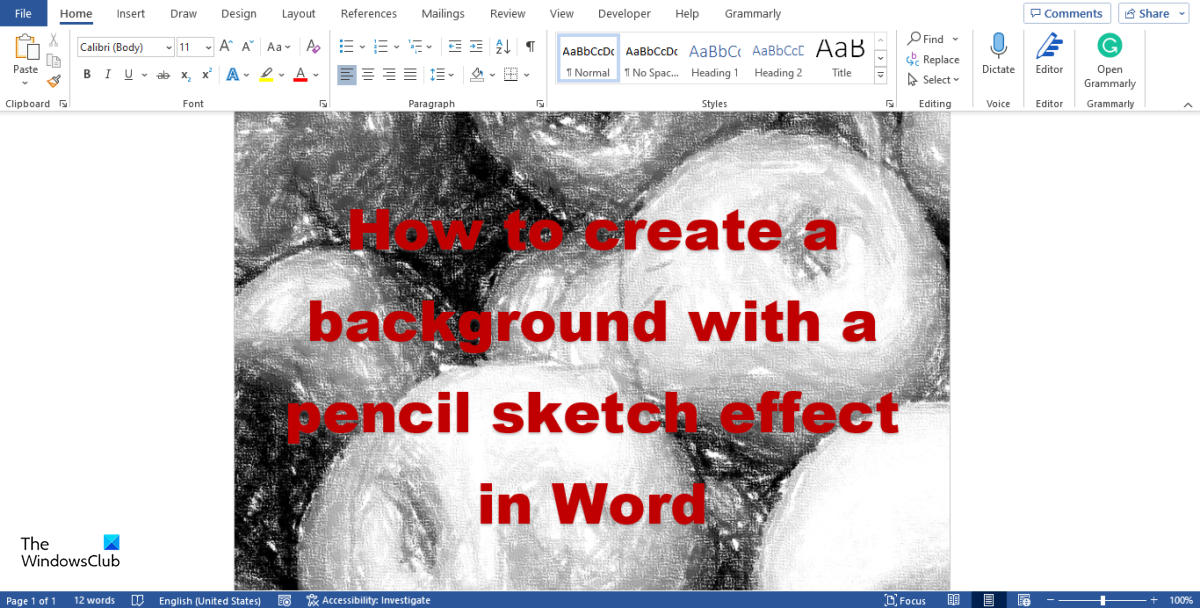
How to create a Background with a Pencil Sketch effect in Word
Follow the steps below on how to create a background with a pencil sketch effect in Word.
- Launch Microsoft Word.
- Click the Insert tab, select Picture, then choose the source where you want the picture to come from.
- Choose a picture from the selected source, then click OK.
- Go to the Picture Format tab, click the Artistic button, and select the Pencil Sketch effect from the menu.
- The Picture is converted into a pencil sketch.
- Right-click the picture and select Save as Picture.
- Save the picture.
- Click the Design Tab, then click the Page Color button.
- Select Fill Effect.
- Select the Picture button.
- Select File.
- Choose the Pencil sketch you have saved and then click Insert.
- Then click Ok.
- Now we have a pencil sketch background.
Launch Microsoft Word.
Click Insert and select Pictures in the Images group, then choose the source you want the picture to come from (This Device, Stock Images, and Online Images.)
Choose a picture from any of the following sources above, then click Insert.
Now we have the picture on the slide.
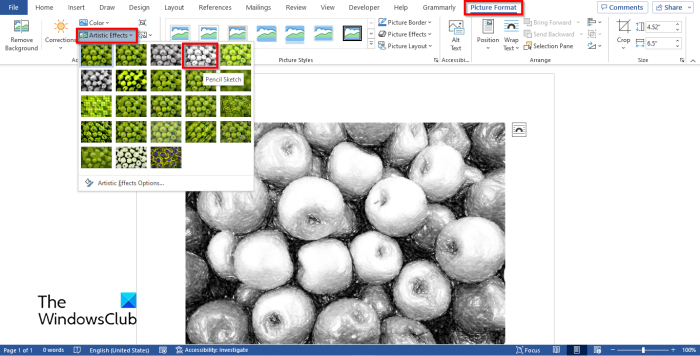
Click on the picture and go to the Picture Format tab.
Click the Artistic button in the Adjust group and select the Pencil Sketch Effect from the menu.
The picture is converted into a pencil sketch.
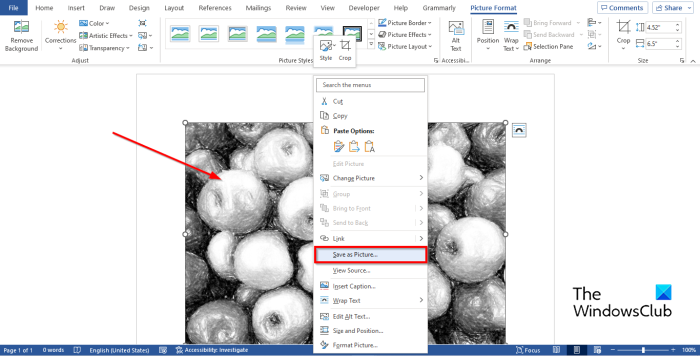
Now save the picture as a file by right-clicking the picture and selecting Save as Picture from the context menu.
A Save as Picture dialog box will open, name the picture, then click Save.
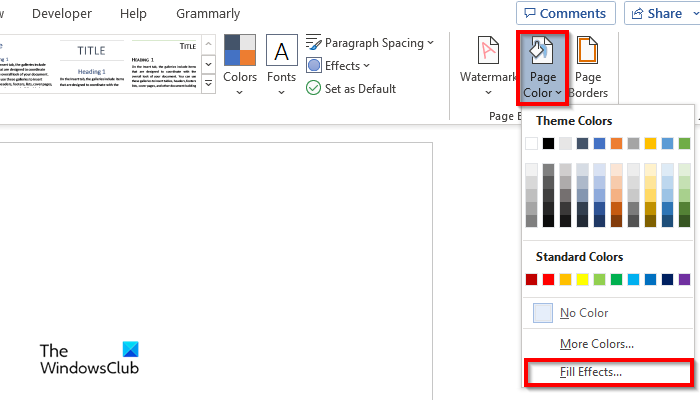
Click the Design tab, then click the Page Color button in the Page Background group.
Select Fill Effects in the menu.
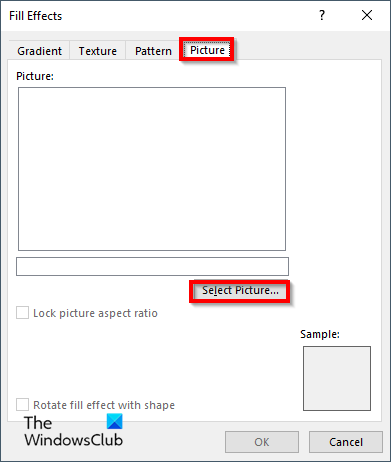
A Fill Effects dialog box will open; click the Picture tab.
On the Picture tab, click the Select Picture button.
An Insert Picture dialog box will open; Select the option From File.
Choose the Pencil sketch you have saved, then click Insert.
Then click Ok.
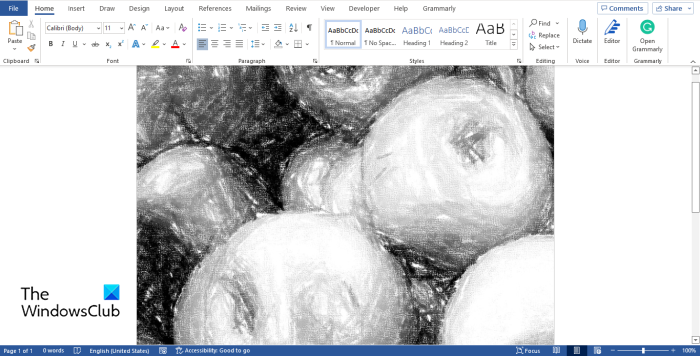
Now we have a pencil sketch background in Microsoft Word.
How do you make a picture look like a painting?
Follow the steps below to make your photo look like a painting in Microsoft Word.
- Insert Picture.
- Ensure that the picture is selected.
- On the Format Picture tab.
- Click the Artistic Effect button in the Adjust group.
- In the drop-down menu, there are three Artistic effects that can make your picture look like a painting, namely, Paint Strokes, Paint Brush, and Watercolor Sponge.
- Choose an option.
How do I make a picture look like a drawing without Photoshop?
Although PowerPoint may not be as advanced as Photoshop, it can make simple photo editing. PowerPoint has various artistic effects that can make your picture looks appealing. To make your Picture looks like a pencil sketch, PowerPoint has a Pencil effect.
How do I find picture tools in Word?
Picture tools are commands that can format your pictures. To access the picture tools, follow the steps below:
- Ensure that the picture is selected. If the picture is not selected, you will not see the Picture Format tab.
- Click the Picture Format tab, and you will see various picture tools that you can use to format your photos.
What does artistic effect mean?
Artistic effects are effects that users can apply to their images to make them look artistic, like a painting or a sketch. In Microsoft Office their various types of artistic effects such as maker, Paintbrush, Pencil Sketch, Cutout, Blur, Glass, and more.
What is illustration in MS Word?
Illustrations are known as pictures or diagrams. In Microsoft Word, you find the illustration tools on the insert tab; these tools are Pictures, Shapes, Icons, 3D Models, SmartArt, charts, and screenshots.
READ: How to create a Word Cloud in Microsoft Word
How do you add effects to pictures?
On the Picture Format tab in Microsoft Word, users can add picture effects to their pictures by using the Artistic Effects feature to make pictures look artistic or Picture effects which applies visual effects to the picture such as Shadow, Glow, Reflection, and more.