
Do you want to insert a sound file in your Microsoft Office documents but do not know how? In this tutorial, we will explain how to insert a sound file in Word, Excel, and PowerPoint. Sound files are audio files that can be played by an electronic device or computer.
How to insert sound file in Word document
To insert an audio or sound file in a Microsoft Word document, follow these steps:
- Launch Microsoft Word.
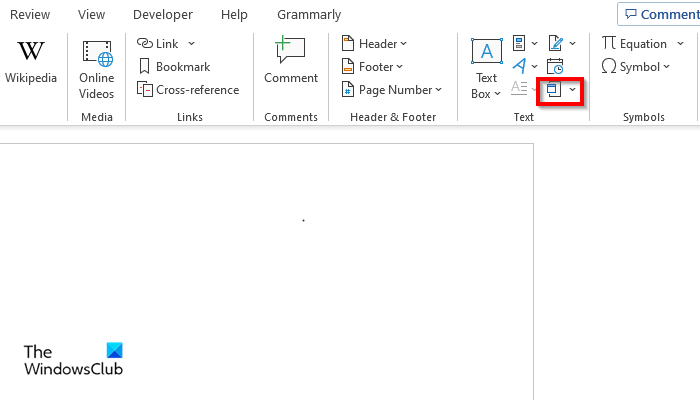
- On the Insert tab in the Text group, click the Object button.
- An Object dialog box will open.
- Click the Create from File tab and then click the Browse button.
- Search for a sound file, then click Insert.
- Then select the Display as an icon check box to choose an icon.
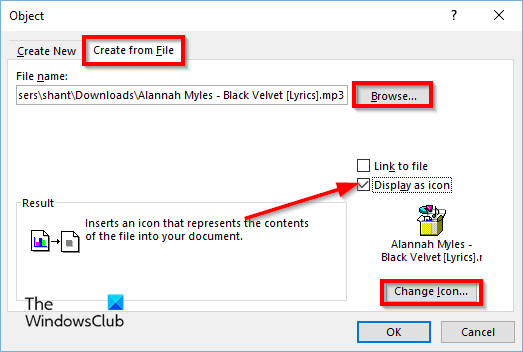
Click the Change Icon button.
A Change Icon dialog box will open; choose an icon, then click Ok for both dialog boxes.
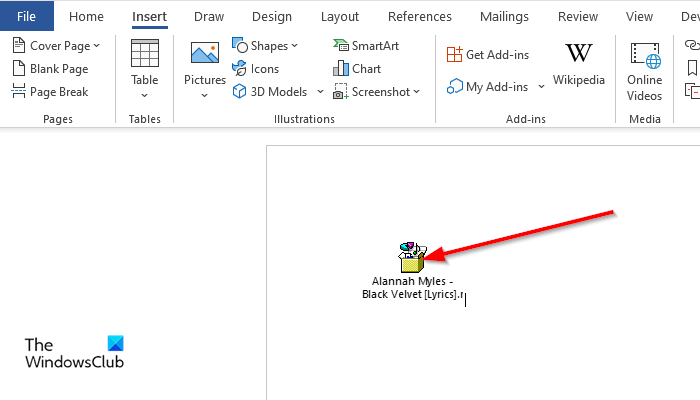
To play the audio, double-click the icon.
An Open Package Contents dialog box will open.
Click Open, and the audio file will open to play the audio.
How to insert sound file in Excel sheet
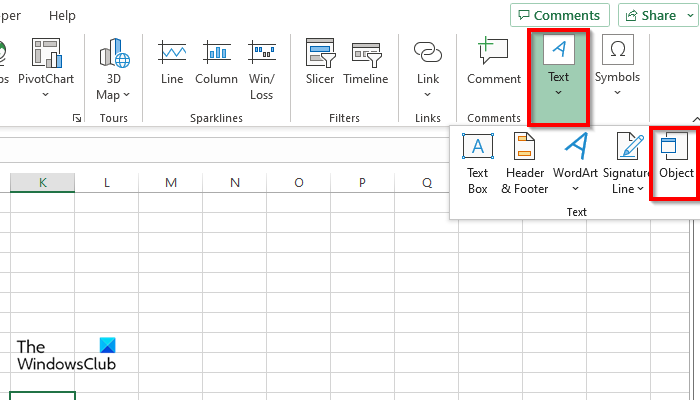
To insert an audio or sound file in a Microsoft Excel sheet, follow these steps:
- Launch Excel.
- On the Insert tab, click the Text button and select Object from the menu.
- An Object dialog box will open.
- Click the Create from File tab and then click the Browse button.
- Search for a sound file, then click Insert.
- Check the check box for Display as icon.
- Click the Change Icon button.
- A Change Icon dialog box will open; choose an icon, then click Ok for both dialog boxes.
- To play the audio, double-click the icon.
- An Open Package Contents dialog box will open.
Click Open, and the audio file will open to play the audio.
How to insert sound file in PowerPoint presentation
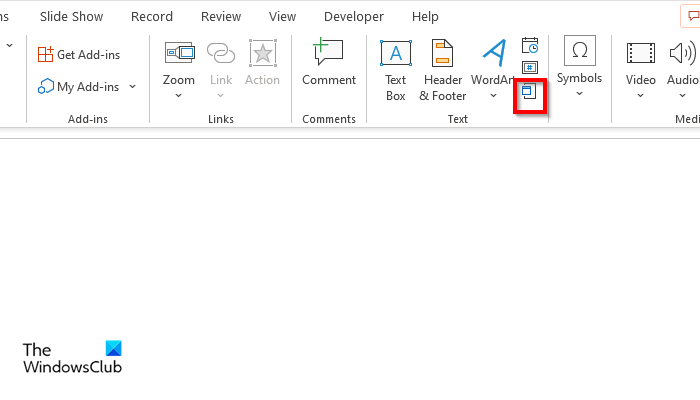
To insert an audio or sound file in a Microsoft PowerPoint presentation, follow these steps:
- Launch PowerPoint.
- On the Insert tab in the Text group, click the Object button.
- An Insert dialog box will open.
- Click the Create from File tab and then click the Browse button.
- Search for a sound file then click Insert.
- Select the Display as icon check box to choose an icon.
- Click the Change Icon button.
- A Change Icon dialog box will open, choose an icon and then click Ok for both dialog boxes.
- To play the audio double click the icon.
- An Open Package Contents dialog box will open.
- Click Open and the audio file will open to play the audio.
We hope you understand how to insert a sound file into Word, Excel, and PowerPoint files.
Can you play audio in Excel?
Yes, you can play music in Microsoft Excel using the Object feature. The Object feature embed files such as documents, videos and audios into your document. In this tutorial, we explain how to insert sound file into Word, Excel and PowerPoint.
Can audio play automatically in PowerPoint?
No audio cannot play automatically in PowerPoint; you must click on the audio for it to play. The audio interface will contain a play button that can also pause, a stop button, a Move forward and backward, and an audio button.
READ: How to make Video Presentation with Audio Narration in Windows
How do I insert audio in Word 2010?
Follow the steps below to insert audio in Word 2010:
- On the Insert tab, click the Object button.
- Click the Create from File tab, then click the Browse button.
- Search for a sound file, then click Insert.
- Check the check box for Display as icon.
- Click the Change Icon button and choose an audio icon.
- Click OK.
- Audio is inserted.