
Adobe creates well-known and well-used apps for graphic designing, audio, and video editing. Their apps are used by professionals and hobbyists alike. Adobe moved from having its apps available on other media to having them available and validated through the Creative Cloud. People who need to use any of their apps would need to sign up for an account on the Creative Cloud, pay for a subscription or use the free trial available for a period and download the app. In order to update the app or apps, Creative Cloud is also used. There can however be errors that will occur from time to time. There may be Adobe Configuration Errors 1, 15 or 16. The configuration error occurs when you attempt to launch a Creative Cloud app.
Fix Adobe Configuration Errors 1, 15 or 16
The Adobe configuration errors 1,15, 16 happen when you attempt to launch a Creative Cloud app. It prompts you to uninstall and reinstall the Adobe app that you were attempting to open. These errors happen when permissions to application folders (Adobe PCD and SLStore) are not configured properly.
Take the following steps to fix Adobe Configuration Errors 1, 15 or 16:
- Show hidden items
- Set permissions
- Run as administrator
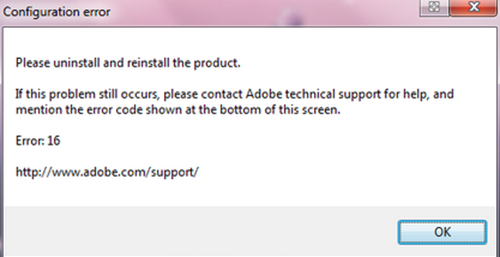
This is the error message that would appear when there is an Adobe configuration error. The article will address the issue and how to fix it.
1] Show hidden folder
To get to the folder that you will need to change permission you will need to enable show hidden items. This folder is hidden by default to prevent accidental deletion or editing. To show the hidden items do the following: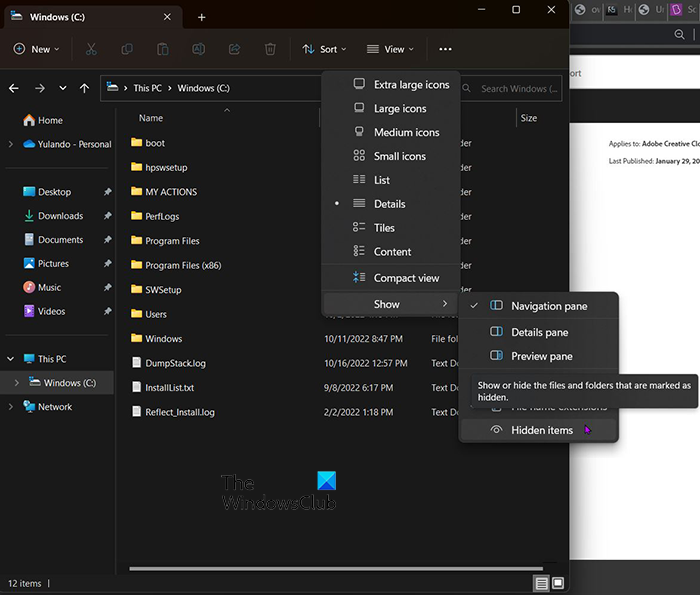
Open any file explorer window. Go to the top and click View. A drop-down menu will appear, click Hidden items if it is disabled. If the Hidden items option is enabled it will have a tick beside it.
2] Set permission
To set the permission for Adobe you will need to perform the following procedures. There are two sets of folders that you will need to do the procedure on, they are SLStore and Adobe PCD.
SLStore – C:\ProgramData\Adobe\SLStore
Adobe PCD – C:\Program Files (x86)\Common Files\Adobe\Adobe PCD
SLStore folder
Let’s look at the procedures for the SLStore folder. When you follow the location and get into the folder you will realize that you are inside the folder thus you will not be able to right-click on it. You may have to go back one folder (the Adobe folder), then right-click on the SLStore folder, or since you are inside the SLStore folder you can just right-click on a blank spot.
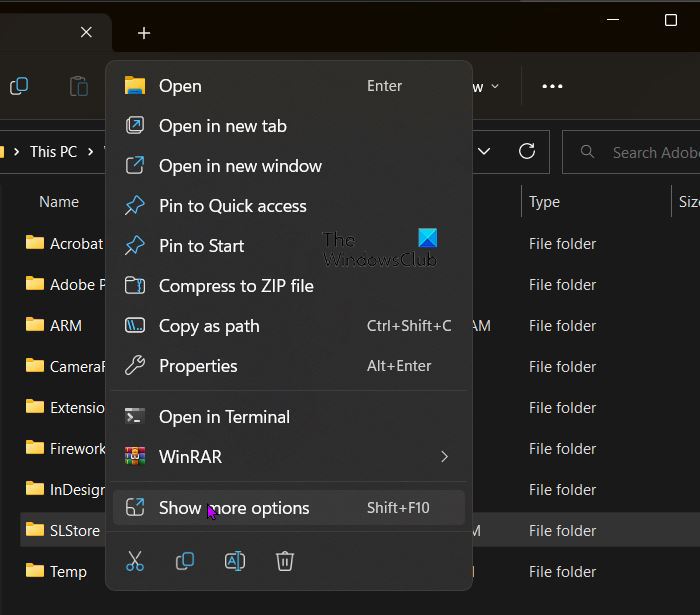
When you right-click the menu will appear, choose Properties.
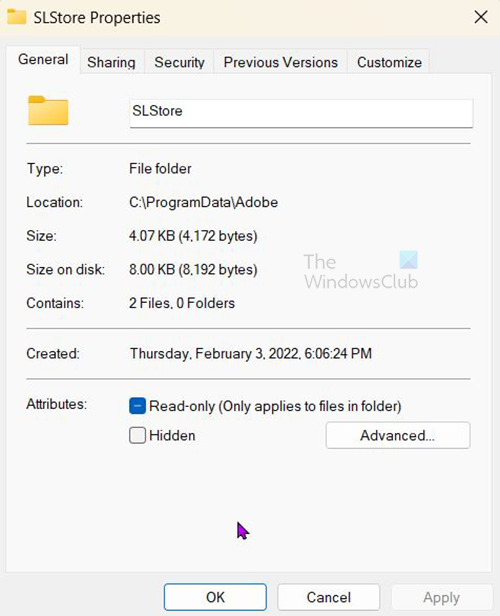
The SLStore properties window will appear, click the Security tab.
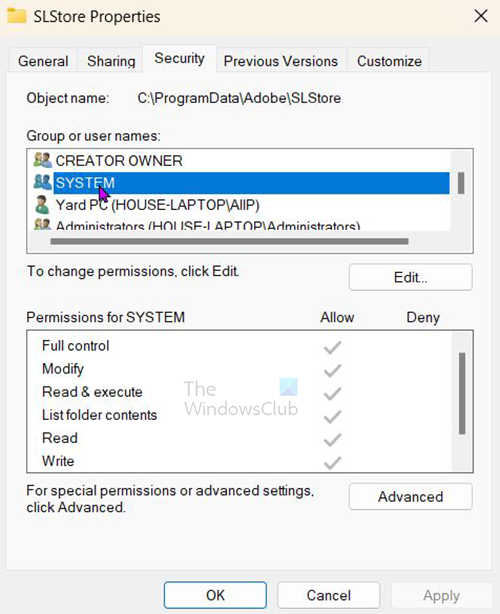
This is the permissions part of the Properties window. This is where you will need to edit the permissions. To make edits to the permissions click Edit.
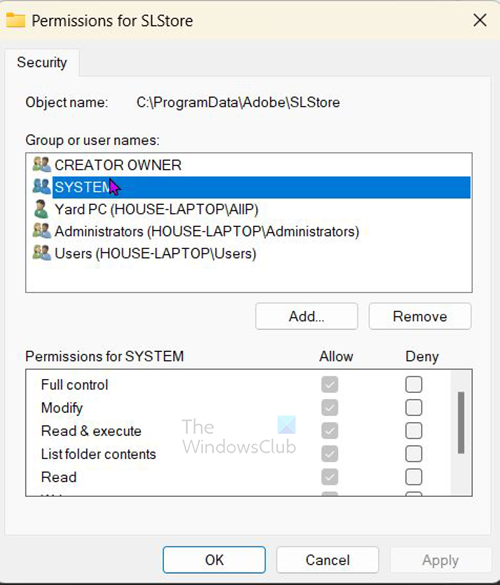
When you have clicked Edit, you will see the Permissions for SLStore options window. The following will be the options that you will choose.
SLStore
- Administrators: Full control
- System: Full control
- Users: Read and Special permissions
When you are finished checking the permissions, click Ok to accept and close the permissions dialogue box.
Click Advanced in the Properties dialogue box.
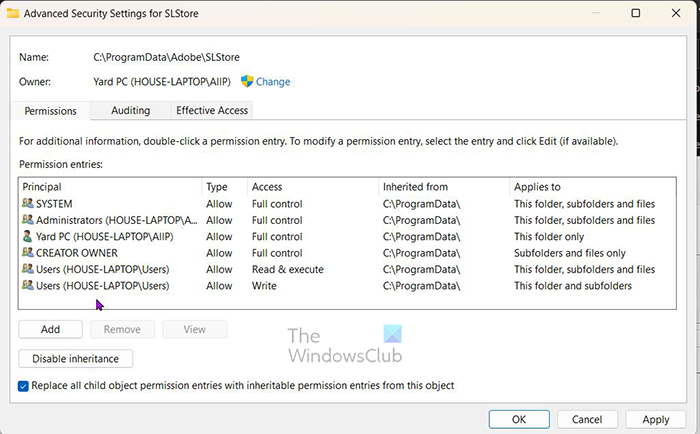
Select Replace all child object permission entries with inheritable permission entries from this object. Click OK, and then click Ok to confirm the choice or Cancel to keep from changing.
Adobe PCD Folder
To get to the Adobe PCD folder you will need to enable Show hidden items. This would have been done when you were making changes to the SLStore folder so it should still be on. To access the Adobe PCD folder go to C:\Program Files (x86)\Common Files\Adobe\Adobe PCD. You will notice that you are right inside the Adobe PCD folder, you can go back one folder (the Adobe folder) and right-click on the Adobe PCD folder or just right-click a blank space inside the Adobe PCD folder. This will bring up the menu, just choose properties.
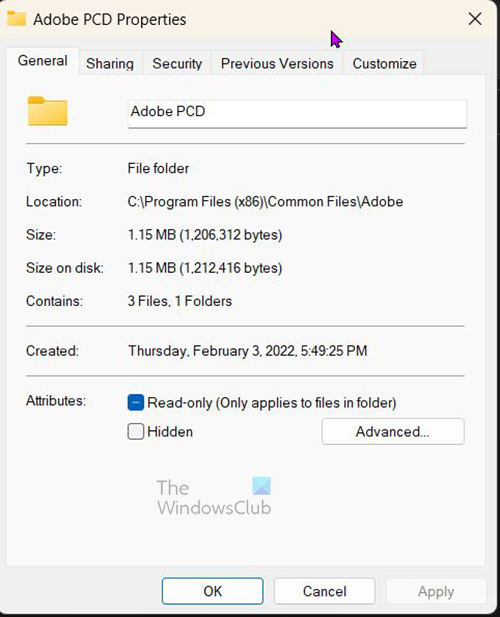
The Adobe PCD Properties options window will appear, go to the securities tab. This is where you will need to edit the permissions. To make edits to the permissions click Edit.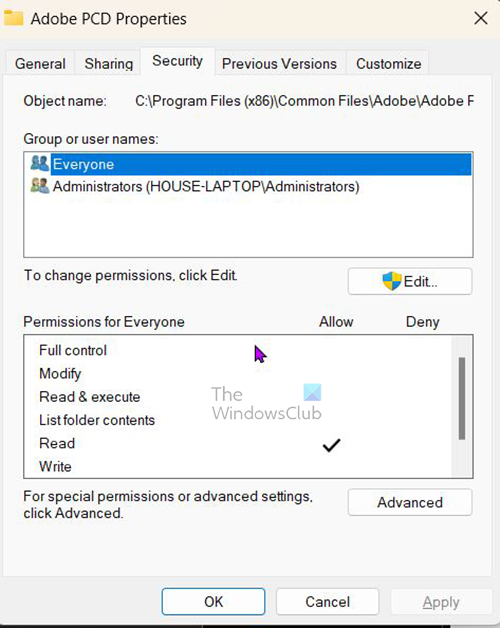
Inside the security tab is where you will change the permissions.
When you have clicked Edit, you will see the Permissions for Adobe PCD options window. The following will be the option that you will choose.
Adobe PCD
- Administrators: Full control
3] Run as administrator
There is another solution that you can try, you can make the Creative Cloud app run as an administrator each time it is opened. However, before making this change long-term, you should test it out first.
You can test if it will work by right-clicking on the Creative Cloud app, then choosing Run as administrator. If the problem goes away then set the Creative Cloud app to always run as administrator.
To set the Creative Cloud app to always run as administrator right-click on it and choose Properties. You then go to Compatibility then choose Run this Program as an administrator then click OK to confirm the choice or Cancel to close without changing.
Read: How to use Adobe Creative Cloud Cleaner Tool
What can cause the Adobe configuration errors 1, 15, and 16?
The Adobe configuration errors 1,15, 16 happen when you attempt to launch a Creative Cloud app. The Adobe configuration errors 1, 15, 16 can be caused when permissions to application folders (Adobe PCD and SLStore) are not configured properly.
How do I fix Error 16 in Photoshop?
Open File Explorer, click on the View tab and then check Hidden items box.
Find the folder at C:\Program Files (x86)\Common Files\Adobe\Adobe PCD. Click on the folder, choose properties then security then Edit to make changes to the Permission. Make the following changes.
- Administrators: Full control
Next, find the folder at C:\ProgramData\Adobe\SLStore then right-click on the folder, choose properties then security then Edit to make changes to the Permission. Make the following changes.
- Administrators: Full control
- System: Full control
- Users: Read and Special permissions.
We hope you find the post useful.