
The Draw tab is not on Excel’s ribbon by default; it must be added, so you will see that it is missing from the ribbon. The Draw tab consists of tools that assist users to make sketches, adding highlights, converting ink to math, and ink to shape. In this tutorial, we will explain how to add and use the Draw tab in Excel.

How to add Draw tab in Excel

- Launch Excel.
- Click the File tab, then click Options on the backstage view.
- An Excel Options dialog box will open.
- Click Customize Ribbon on the left pane.
- On the right, in the box of the Main tab, enable the Draw tab by checking the Draw tab check box.
- Then click OK.
- The Draw tab will be enabled on the menu bar.
How to use Draw tab in Excel
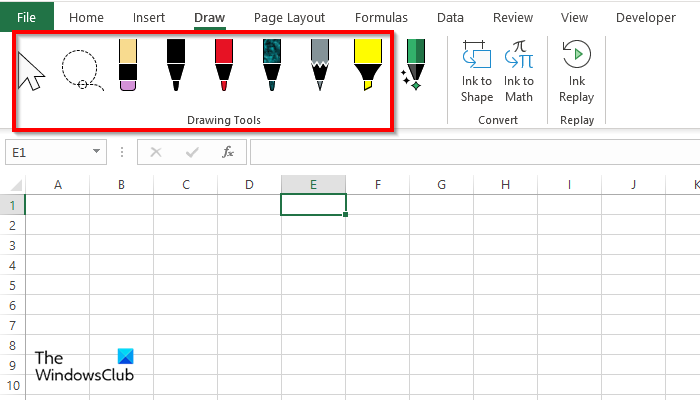
On the Draw tab, there are various drawing tools that you can use, namely:
Select tool: Select objects such as ink, shapes, and text area. They are useful when working with objects behind the text. To use the Select tool, draw with a pen on the spreadsheet and use the Select tool to select and move it.
Lasso Select: Select ink by drawing a shape. All the strokes in the shape will be selected. To use the Lasso Select tool, click the Lasso Select button, then draw it over the ink shape. You can now move the ink around the spreadsheet.
Eraser: The Eraser is used to remove the ink that has been drawn on the page. Click the Eraser button to erase the ink in the spreadsheet.
The Pen and Pencil tool: Enables users to draw on the spreadsheet. Click the Pen or Pencil tool and draw on the spreadsheet. You can choose the color and width of the pencil or pen.
Highlighter: Use to Highlight text or draw on the spreadsheet. Click the Highlighter button and highlight the text.
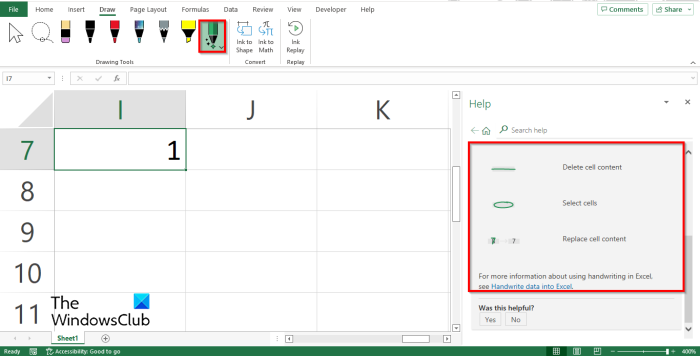
Action Pen: Use the action pen to enter data by handwriting. To use the Action Pen, click the Action Pen button and select Ink Gesture Help. A Help pane will appear on the right with some instructions on how to use the Action pen. Follow the instructions (See the photo above.) Press the ESC button to escape the Action Pen.
Ink to Shape: Automatically convert Ink drawing to shape.
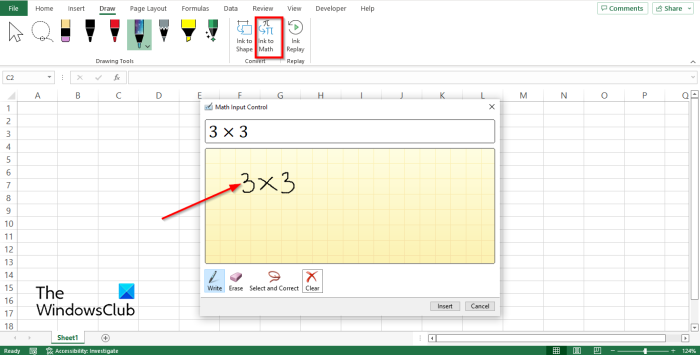
Ink to Math: Convert handwritten mathematical expressions to text. Click the Ink to Math button, and a Math Input Control dialog box will open. Now write within the box. You will see a conversion of the math you wrote in the box on the box above. Now click Insert.
Ink Replay: automatically replays the creation of visible ink strokes. Click the button to replay the ink strokes.
You can use the features as required.
READ: How to use Ink to Shape in Word, PowerPoint, Excel
How do you get out of draw mode in Excel?
To get out of any of the drawing tools mode on the Draw tab in Excel, press the Esc key on your keyboard. The Esc key is used to generate the escape character. The Esc is located on the top left of your keyboard.
What version of Excel has an action pen?
Action Pen enters data by handwriting. The Action Pen is available to Microsoft Office 365 subscribers with the latest version of Excel. The Action Pen tool is available on the Draw tab in the Drawing Tools group. The Action Pen tool is not only available in Excel but also available in Word.
How do you insert ink in Excel?
To insert ink on your Excel spreadsheet, you must use the Pen tool that is available on the Draw tab in the Drawing tools group. The Pen tool consists of various and unique colors that you can use to make a sketch on your spreadsheet.
How do I unhide the ink in Excel?
Excel has a feature called the Hide Ink feature that will hide any ink within your spreadsheet; it will not delete the ink on your spreadsheet but hide it instead. Here are the steps below to hide ink on your spreadsheet in Excel:
- Click the Review tab.
- Click Hide Ink in the Ink group; all the ink in your spreadsheet will be hidden.
- If you want the ink to appear, again click the Hide Ink button again.